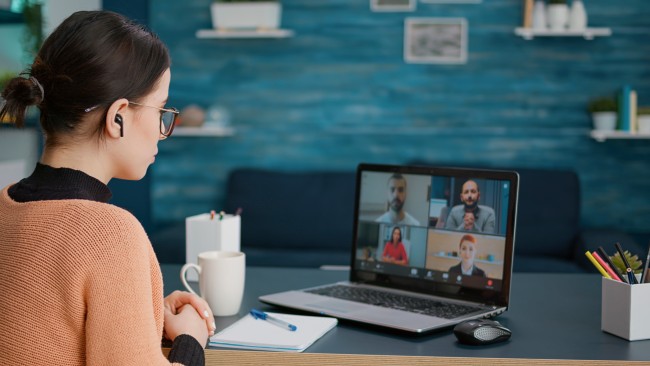
High–quality webcam software often feels like a quiet engine behind clear video calls, sharp recordings, and smooth streaming setups. Many users skip it, trusting built-in apps, then wonder why their video looks flat or blows out under a warm lamp.
Powerful webcam tools fix that. They sharpen grainy frames, trim background noise, tune colors, hide messy rooms, lock focus on a shifting face, and add layers of control that Windows alone never provides.
A strong webcam tool also works as a small studio. Filters, live effects, split-screen tricks, and adjustable overlays all help shape a meeting, tutorial, lesson, or gaming stream. A simple app can change video presence more than an expensive camera.
Below are ten standout webcam software tools for Windows 10, each studied for performance, features, editing strength, user experience, and price structure.
Best Webcam Software for Windows 10
1. OBS Studio
OBS Studio often feels like a restless giant in the streaming world. It carries a raw sense of freedom, almost like handing over a digital studio with open windows and dozens of levers waiting to be pulled. Many creators use OBS for live streaming, yet its webcam functions work with surprising depth on Windows 10.
Lighting tweaks, sharpness adjustments, chroma key layers, and multi-scene setups turn a plain webcam into something that resembles a broadcast feed. New users sometimes feel startled by the dense interface, though experts often appreciate its wild amount of control.
A striking part of OBS lies in its open-source nature. No hidden paywalls. No locked features forcing an upgrade. The tool allows switching between webcams, merging audio and video, stacking overlays, and recording in high resolution.
Movement feels smooth even on modest hardware when settings are tuned well. Streams hold steady under pressure. Colors look richer with manual filters. Scenes switch fast. There is also a kind of satisfaction in shaping the environment from scratch – similar to arranging a stage before the curtain rises.
For content creators, students recording lessons, trainers building tutorials, and gamers streaming late into the night, OBS often becomes a reliable companion. The freedom and stability it offers make it one of the most trusted webcam tools on Windows.
Key Features
- High-quality video capture and recording
- Scene-based webcam switching
- Custom filters (brightness, color correction, noise suppression)
- Multiple audio sources and mixing tools
- Chroma key for virtual backgrounds
Pricing
- Free (Open-source)
2. Logitech Capture
Logitech Capture gives a neat and steady feel from the first launch. Many Windows 10 users with Logitech webcams find it already tuned to their hardware, which creates a natural bond.
The interface appears clean, the controls stay within reach, and switching views between two connected cameras works without much fuss. A soft sense of polish flows through the app, making it comfortable even during long recording sessions.
Brightness often jumps first when settings start shifting, followed by contrast and saturation, all neatly controlled through sliders. The app also offers text overlays, borders, and transitions.
Some content makers enjoy the simple studio-like approach where scenes can be organized without learning complicated workflows. Multi-source recording feels surprisingly smooth, helping build video lessons, product demos, and reaction videos.
A solid benefit of Logitech Capture lies in its optimizations for Logitech webcams. Colors appear accurate, auto-focus reacts quicker, and low-light adjustments seem more stable.
The software carries a balanced mix of flexibility and simplicity, making it helpful for users who want good webcam output without wrestling with complex dashboards.
Key Features
- Presets built for Logitech cameras
- HD recording with manual image controls
- Dual-camera support
- Text overlays and borders
- Noise reduction and background effects
Pricing
- Free for Logitech webcam users
3. ManyCam
ManyCam often feels playful at the surface yet surprisingly technical underneath. A flood of filters, effects, and backgrounds gives a light, creative vibe, while the engine behind it handles live streaming, virtual classrooms, and business meetings without flinching.
ManyCam offers the kind of flexibility that works well for teachers, trainers, and streamers who want dynamic visuals.
Virtual backgrounds change scenes quickly. Multi-preset switching helps run sessions with different angles or text labels. The software also supports picture-in-picture windows, which remain handy during presentations.
Bandwidth control feels smart, automatically adjusting video quality during unstable connections. The app also works as a virtual camera, letting other apps read ManyCam’s feed instead of the raw webcam.
The overall experience brings a lively tone. It can turn a plain meeting into something more engaging or shift a quiet lecture into a cleaner, more structured lesson. ManyCam fits those who want movement, customization, and extra life in their webcam output.
Key Features
- Virtual backgrounds and green-screen tools
- Multi-camera switching
- PIP mode
- Live streaming to social platforms
- On-screen texts, timers, and effects
Pricing
- Free version available
- Paid plans start around $49/year
4. CyberLink YouCam
CyberLink YouCam carries a stronger push toward clarity and enhancement. Videos feel crisp, skin tones look balanced, and frames stay steady even under odd lighting.
Years of refinement show up in tiny details – auto-lighting adjustments, noise filtering, and lens correction. The software suits students, office workers, and trainers who want clean visuals without spending time on complex setup.
Live filters add polish while still looking natural. Presenters often make good use of drawing tools, screen overlays, and slide-in panel elements during lessons or product walkthroughs. The design tries to blend fun filters with professional tools, offering a hybrid style that appeals to a wide audience.
CyberLink YouCam also integrates security elements. Facial login options help Windows users sign in without typing passwords. Business users often appreciate the balance between fun effects and practical enhancements.
Key Features
- Video enhancements (lighting, skin smoothing, HDR effects)
- AR makeup and fun filters
- Drawing tools for presentations
- Business features like facial recognition login
- HD recording and video stabilization
Pricing
- Starts at $39.95
- Subscription option available
5. SplitCam
SplitCam enters the scene with a focused goal: allow many programs to use the same webcam feed at the same time. Several streaming apps often fight for camera access, but SplitCam steps in and handles the distribution.
A user can join a meeting, record a video, and stream gameplay simultaneously, all through one camera feed. That kind of multitasking makes SplitCam useful for creators who juggle multiple platforms.
The software includes basic enhancement tools and visual layers. Camera resolutions go up to full HD and beyond. Background blur and color adjustments work well for quick improvements. It supports RTSP, NDI, and other streaming standards, making it flexible enough for advanced users.
Its plain interface carries a simple charm – nothing flashy, yet dependable. The lightweight build helps older systems run smoothly.
Key Features
- Virtual camera splitting for multiple apps
- Effects and filters
- High-resolution support
- Streaming protocols (RTSP, NDI)
- Multi-source switching
Pricing
- Free
6. Windows Camera App
The default Windows Camera app, though quiet and often overlooked, remains surprisingly efficient. It delivers clean recordings, minimal lag, and simple controls. Many users open it for quick snapshots or basic videos, yet the app performs well even during longer sessions.
Its strength lies in stability. It works directly with the Windows driver system, reducing compatibility issues. There’s a comforting directness here—no clutter, no shifting menus. The app opens fast, adjusts exposure automatically, and supports high-resolution output depending on webcam hardware.
While advanced tools are limited, the app still manages timer controls, framing grids, and video stabilization. It’s a dependable choice for those who need straightforward webcam performance without advanced editing.
Key Features
- Fast and simple interface
- Automatic exposure adjustments
- High-resolution support
- Video stabilization
- Grid lines and timer settings
Pricing
- Free, included with Windows 10
7. Webcamoid
Webcamoid walks in with a light, open-source personality but surprises users with its set of controls. The interface may look easygoing, yet under the hood sits a robust toolkit with filters, frame changers, custom shapes, and tone adjustments.
The app gives users space to experiment. Dozens of effects – blur, glow, pixel, mirror – add playful twists. Manual controls fine-tune saturation, gamma, and white balance. The modular design helps it run smoothly on both strong and modest machines.
Webcamoid also works well with multiple webcams, offering flexible switching and output settings. Its broad plugin support helps extend features over time, making it a fun yet powerful tool for creative recording sessions.
Key Features
- Wide range of effects
- Color and exposure controls
- Multi-camera switching
- Plugin support
- Easy virtual camera setup
Pricing
- Free (Open-source)
8. XSplit VCam
XSplit VCam offers one strong promise: background removal without needing a green screen. The software focuses on AI-driven edge detection that separates the subject from everything behind it. Rooms with clutter, uneven walls, or shifting light can be hidden with a clean blur, replacement image, or custom background.
The precision feels carefully engineered. Edges around hair, shoulders, and clothes look cleaner compared to many cheaper tools. VCam also provides depth adjustments, allowing gentle blurs that mimic real camera lenses.
Content creators attach VCam to meeting apps, streaming platforms, and recording tools with ease. Its design remains simple but powerful, making it a choice for anyone who needs background cleanup without extra hardware.
Key Features
- AI-driven background removal
- Background replacement or blur
- Automatic edge refinement
- Multi-platform support
- Color correction tools
Pricing
- Free plan with watermark
- Premium starts at roughly $30/year
9. Snap Camera
Snap Camera brings the lively spirit of Snapchat filters into Windows 10. It mixes creativity with personal expression, using AR lenses that react to faces in real time. Social streamers, online teachers, and casual callers often add movement and humor with simple filter choices.
The app pulls filters created by community artists, offering thousands of lens effects—from subtle lighting boosters to quirky characters. Despite its fun angle, Snap Camera outputs steady performance and clean video quality. Many meeting apps recognize its virtual camera feed instantly.
Filters also help soften dull lighting or smooth grainy footage. Behind the playful surface, Snap Camera adds a refreshing visual spark.
Key Features
- Thousands of AR lenses
- Virtual camera output
- Real-time face tracking
- Works with most Windows apps
- Lightweight performance
Pricing
- Free
10. IP Camera Viewer
IP Camera Viewer focuses on monitoring rather than aesthetics. It watches over spaces using webcams and IP cameras, turning Windows 10 machines into basic surveillance stations.
The layout remains clear, showing multiple camera feeds on one screen. The workflow serves small businesses, home offices, and users wanting simple monitoring without heavy security suites.
Brightness, contrast, and sharpness can be tuned per feed. The software supports many camera brands, offering flexible connections. Motion areas can be configured, and feeds can rotate or zoom depending on camera support.
Although its purpose differs from entertainment-focused tools, many Windows users rely on it to manage webcams mounted across rooms or desks.
Key Features
- Support for USB webcams and IP cameras
- Multi-camera layout
- Per-camera brightness and sharpness controls
- Pan, tilt, and zoom options (camera dependent)
- Simple, stable interface
Pricing
- Free
Final Thoughts
Webcam software shapes digital presence more than many expect. A sharp frame, clear lighting, and a polished background can shift the tone of a meeting or recording instantly.
Each tool here offers a different strength – some carry a fun streak, others lean toward clarity, and a few focus on multitasking or monitoring. Windows 10 handles them well, giving users plenty of freedom to pick setups that match teaching, work, content creation, streaming, or security needs.
Also Read: